Key and fill and chroma key setupsFrom the panel to on air.
You drive the graphics from the Cuelio panel, CasparCG renders them, and your vision mixer lays them over the cameras. There are two ways to wire it, and anyone on your network can help run it.
- 3parts in every setup: the Cuelio panel, CasparCG and your vision mixer
- 2ways to wire it: key + fill, or chroma fill
- 1cable is all the on-the-go setup needs
- 2+operators on one playout, on phones, tablets and laptops
Three parts do the work.
- 01
The Cuelio panel
The playout software you press. It keeps the match itself: the score, the clock, the cards and the stats. Press one key and the data is already in the graphic.
- 02
CasparCG
The free, open-source playout server. It takes Cuelio’s commands and renders the HTML graphics live, out of its video outputs.
- 03
Your vision mixer
It takes CasparCG’s output with your cameras, removes the background and lays the graphic over whichever camera you cut to.
Key and Fill
CasparCG sends two SDI signals to the mixer. Fill is the graphic itself. Key is a black and white matte: white where the graphic shows, black where the cameras show through. Soft edges and see-through parts stay exactly as designed.
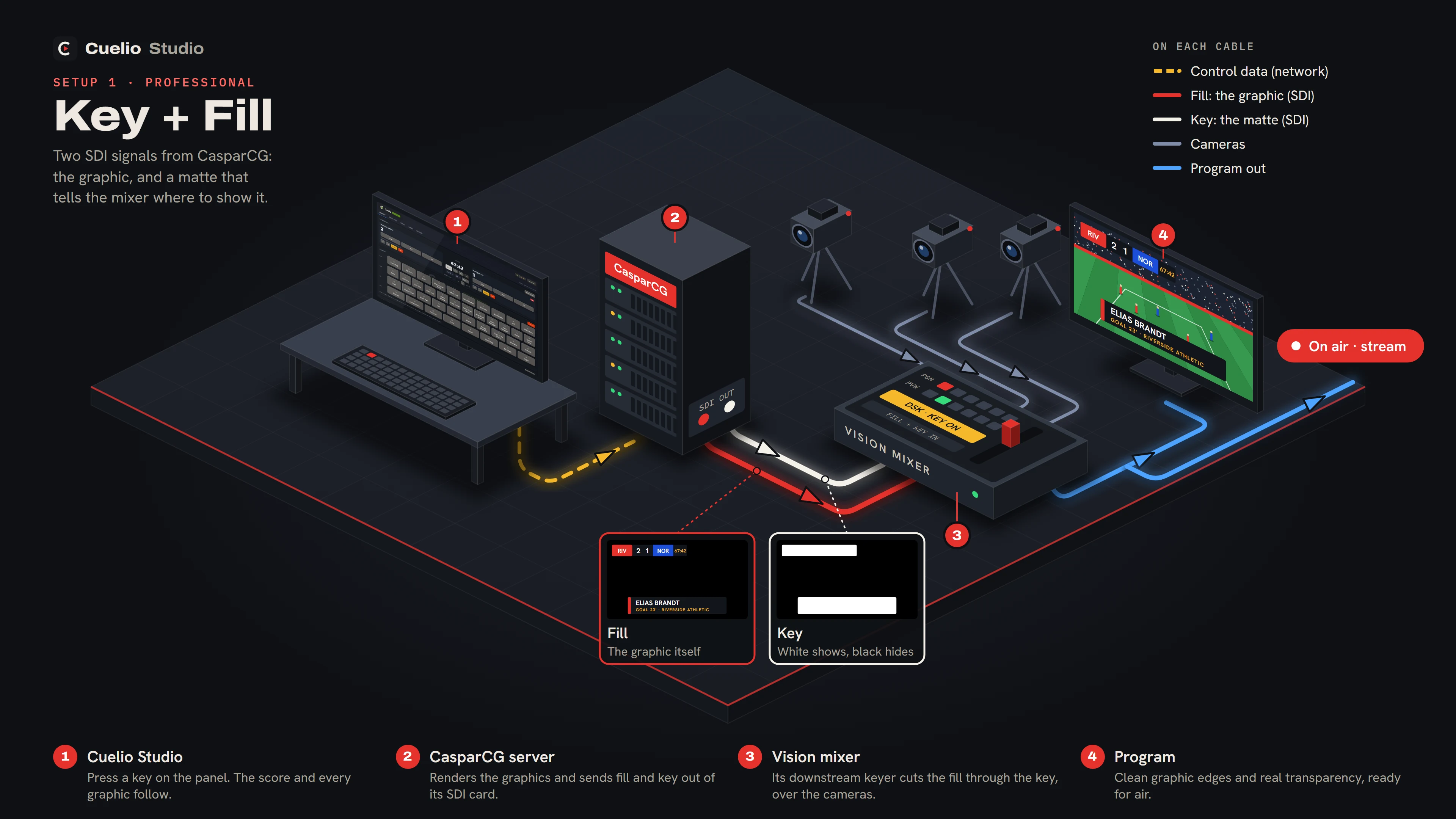
How the signal travels
Press a key in Cuelio Studio
The panel already holds the score and the clock, so it sends CasparCG the graphic with its data.
CasparCG renders it
The server can be the same computer or another one on your network.
Two SDI cables go to the mixer
One carries the fill and one carries the key, from an SDI card with both outputs.
The downstream keyer does the rest
It cuts the fill through the key, over the program picture, so the graphic stays up through every camera cut.
What you need
- A computer running Cuelio Studio
- CasparCG, with an SDI card that has separate fill and key outputs
- Two SDI cables
- A vision mixer with a downstream or linear keyer
Choose it for
Fixed control rooms, outside broadcast and any show where the graphics have to look exactly as designed.
Chroma Fill
One laptop or desktop, one cable. Cuelio plays the graphics over a solid colour on the program channel, and your mixer’s chroma keyer removes that colour. No separate server and no second output.
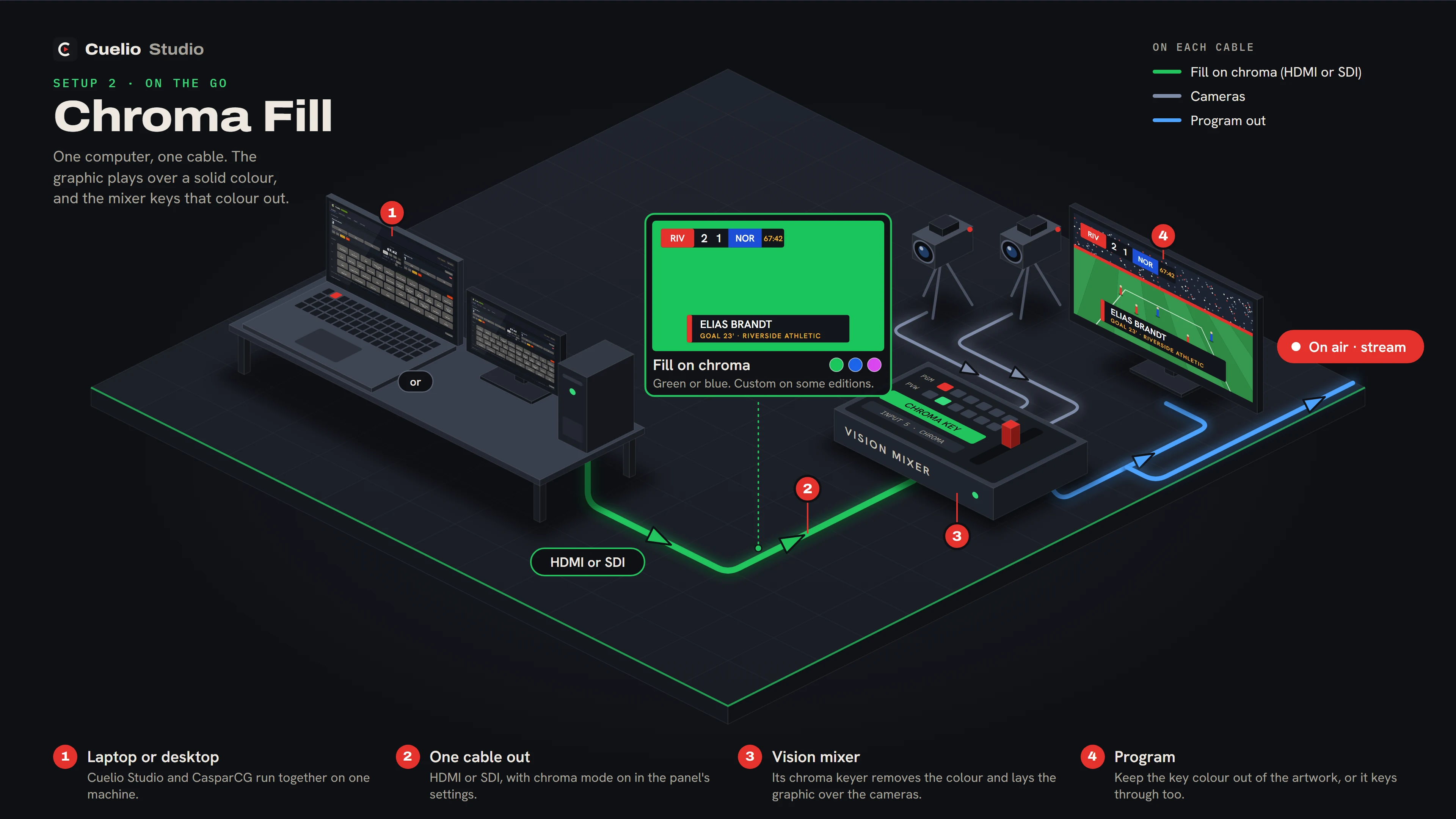
How the signal travels
Run both on one computer
Cuelio Studio and CasparCG sit together on your laptop or desktop.
Turn on chroma mode
It is in the panel’s settings. The colour sits under every graphic and stays up between graphics, until you switch it off.
One cable goes to the mixer
HDMI or SDI, from CasparCG’s program output into any mixer input.
The chroma keyer removes the colour
Set the keyer to the same colour, and the graphic lands over your cameras.
What you need
- One laptop or desktop with an HDMI or SDI output
- Cuelio Studio and CasparCG installed on it
- One HDMI or SDI cable
- A vision mixer with a chroma keyer
Pick the right colour
Every edition offers green or blue. Basketball, netball and boxing also take a custom colour. Keep the key colour out of your artwork, or it will key through too.
Which setup fits your show?
| Compare | Key + Fill | Chroma Fill |
|---|---|---|
| Cables to the mixer | Two SDI | One HDMI or SDI |
| Computers | One or two | One |
| Output | SDI card with fill and key | HDMI port or one SDI output |
| Mixer needs | Downstream or linear keyer | Chroma keyer |
| Soft edges and see-through parts | Exactly as designed | Depends on your keyer; solid shapes key cleanest |
| Colours in the artwork | Any | Avoid the key colour |
| Best for | Control rooms and outside broadcast | Small crews and pop-up venues |
One playout. More than one operator.
Cuelio Studio runs on one main computer, and that computer serves the panel to your network. Anyone on the same LAN or Wi-Fi can open it in a browser on a tablet, phone or laptop, with nothing to install. Score, clock and on-air lights stay in sync on every screen.
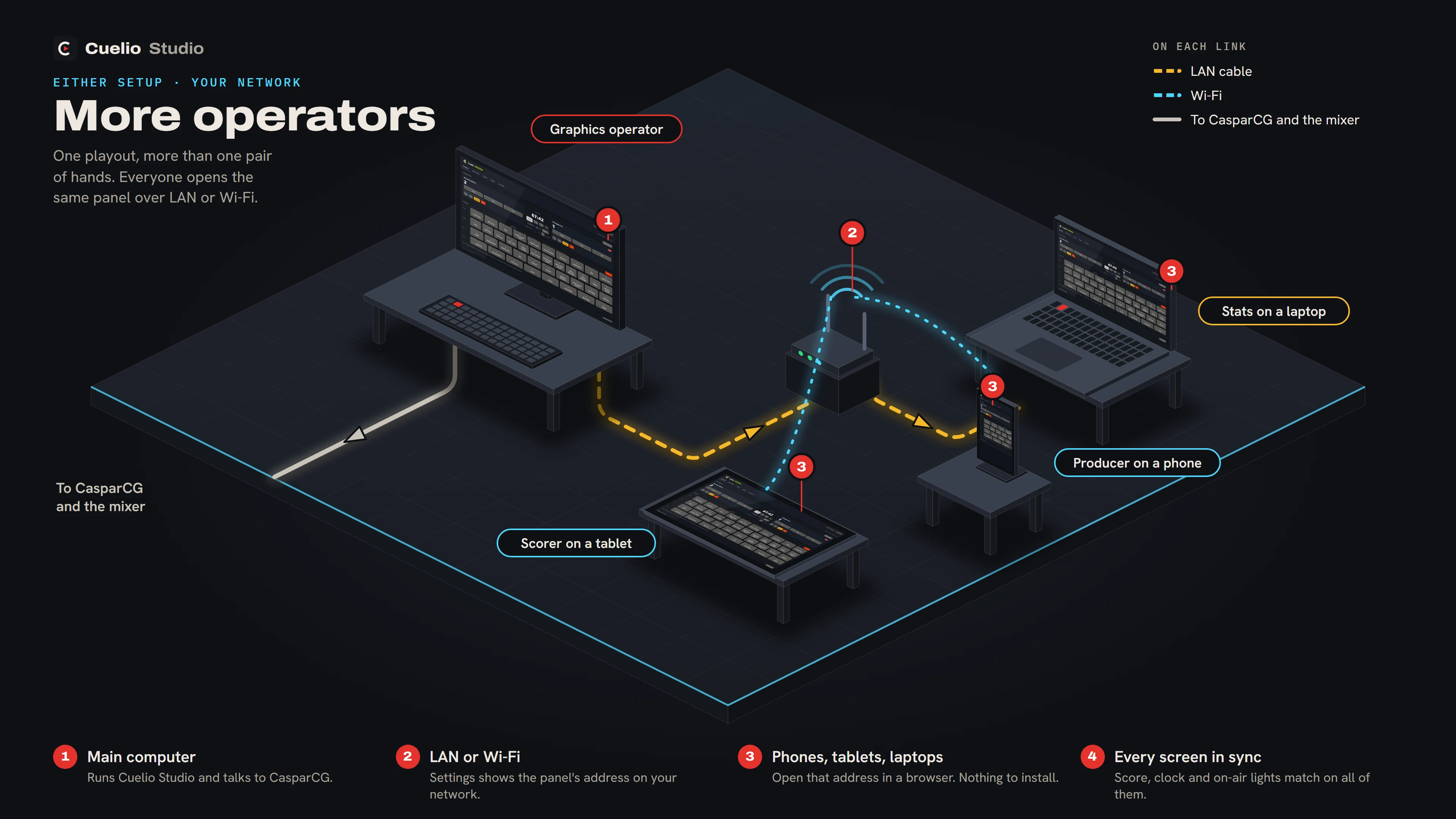
- 01
Graphics on the main computer
One operator takes the graphics to air with the F-keys.
- 02
Score on a tablet
A second operator taps in the score and runs the clock at the side of the court or pitch.
- 03
Stats on a laptop
A third types the stats and line-ups, and the graphics pick them up.
- 04
Producer on a phone
See what is on air and what the score is, from anywhere on the network.
Connect a device
Find the address
Open Settings in the panel on the main computer. It lists the panel’s network addresses, like http://192.168.1.24 followed by a port number.
Join the same network
Connect the phone, tablet or laptop to the same LAN or Wi-Fi as the main computer.
Open it in a browser
Type the address and the panel appears, already in sync.
Good to know
- A screen dropping off Wi-Fi takes nothing off air. Playout runs on the main computer.
- Basketball, netball and boxing can lock playout, so only the main computer can take graphics to air while others score.
- The panel opens without a login, so keep it on your crew’s private network, not public venue Wi-Fi.
- If a device cannot connect, allow the port in the address through the main computer’s firewall.
- Use a cable for the main computer where you can.
About the setups.
What is key and fill?
Two matching video signals for putting graphics over a live picture. The fill carries the graphic, and the key is a black and white matte that tells the vision mixer where to show it. Because the key can hold every shade of grey, soft edges and see-through parts stay as designed.
What is the difference between key and fill and chroma key?
Key and fill uses two signals, so nothing in the graphic has to be removed by colour. Chroma key uses one signal: the graphic sits on a solid colour, and the mixer removes that colour. Chroma key needs less kit, but keep the key colour out of the artwork.
Which setup should I start with?
Use key + fill if your mixer has a keyer that takes fill and key, and CasparCG has an SDI card with both outputs. It gives the cleanest result. If you are travelling light, or your computer has one HDMI port, start with chroma fill.
Do phones and tablets need an app?
No. The panel opens in the browser on any phone, tablet or laptop on the same LAN or Wi-Fi network. Only the main computer needs Cuelio Studio installed.
How many operators can work at once?
The panel sets no limit on the number of screens. Each one connects to the main computer, and only the main computer talks to CasparCG, so more screens do not add work for CasparCG.
Do I need the internet to run a show?
No. The app needs the internet once, to activate its licence. After that, the panel, CasparCG and every operator screen only need your own network.
Can CasparCG run on a different computer from the panel?
Yes. Copy the graphics into that server’s template folder, then type its address into the panel’s settings and press Test. That checks the server without touching what is on air. You can save each venue’s server by name.
Can chroma fill go over SDI as well as HDMI?
Yes. Chroma mode only puts the colour on the program channel, so it travels on whichever output CasparCG uses for that channel. Most laptops use HDMI, and a computer with an SDI card can use SDI.
Try it on your own rig.
Seven days with everything working. Tell us what you produce and we will help you pick the right setup.